
Checking Downloaded File Integrity With Checksums and Digital Signatures
Checking Downloaded File Integrity With Checksums and Digital Signatures
When downloading files from the internet whether software installers, operating system updates, compressed archives, or ISO images you always face the risk of receiving an altered or corrupted file. Unstable network connections causing data fragmentation, bad storage sectors, or compromised mirror servers serving malicious payloads are common hazards. To guarantee absolute safety, two industry-standard tools are widely used: Checksums (Cryptographic Hashes) and Digital Signatures. Understanding how these two mechanisms operate empowers you to protect your devices proactively against potential threats.
Why Checking Downloaded File Integrity Matters
File Integrity Checks address two independent yet complementary problems: verifying whether a file was corrupted during transit, and confirming whether it genuinely originated from the claimed publisher.
Checksum (Cryptographic Hash): Checking Data Integrity
A checksum is a fixed-length string of characters generated from the content of a file using a mathematical algorithm (such as SHA-256 or SHA-512).
- Digital Fingerprint: A checksum serves as the unique digital fingerprint of a file.
- Avalanche Effect: If even a tiny modification occurs such as 1 bit of data becoming corrupted the generated checksum string changes completely.
- Purpose: Allows you to confirm that the local copy on your computer matches the file on the publisher’s server bit-for-bit.
Digital Signature: Authenticating Origin and Trustworthiness
While a checksum proves that a file has not been modified, a Digital Signature goes further by verifying the identity of the creator.
- Asymmetric Encryption: The developer uses a Private Key to sign the file. Users then verify the signature using an accompanying Public Key or Digital Certificate.
- Anti-Spoofing: An attacker can alter a file and generate a matching checksum, but they cannot produce a valid Digital Signature without access to the publisher’s Private Key.
- Purpose: Ensures the file genuinely comes from the real developer and has not been tampered with since it was signed.
Guide to Checking Checksums on Windows, macOS, and Linux
After downloading a file, locate the expected checksum published on the official download page and compare it against your local file.
On Windows (Using PowerShell Get-FileHash or certutil)
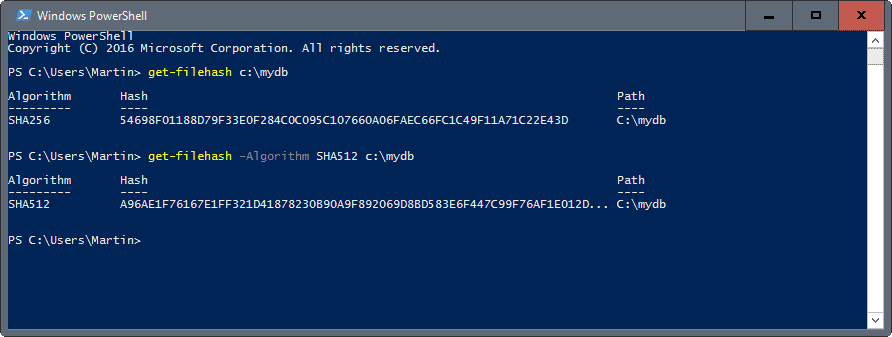
Windows includes built-in command-line tools to calculate hashes quickly without installing third-party applications.
Using PowerShell (Recommended):
Open PowerShell and enter the following command:
Get-FileHash -Algorithm SHA256 "C:\path\to\file.iso"
The system will output a 64-character SHA-256 hash string. Compare every character against the value published on the website.
Using Command Prompt (CMD) with certutil:
If using classic CMD, run:
certutil -hashfile "C:\path\to\file.iso" SHA256
On macOS and Linux (Using sha256sum or shasum)
Most UNIX-based operating systems provide pre-installed hash utilities in the terminal.
On Linux (Ubuntu, Debian, Fedora, CentOS):
sha256sum /path/to/file.iso
On macOS:
shasum -a 256 /path/to/file.iso
Automated Comparison Tip for Linux/macOS:
If the website provides a checksum file (such as SHA256SUMS), download it into the same directory as your installer and run:
sha256sum -c SHA256SUMS

If the terminal displays OK, your file is completely intact.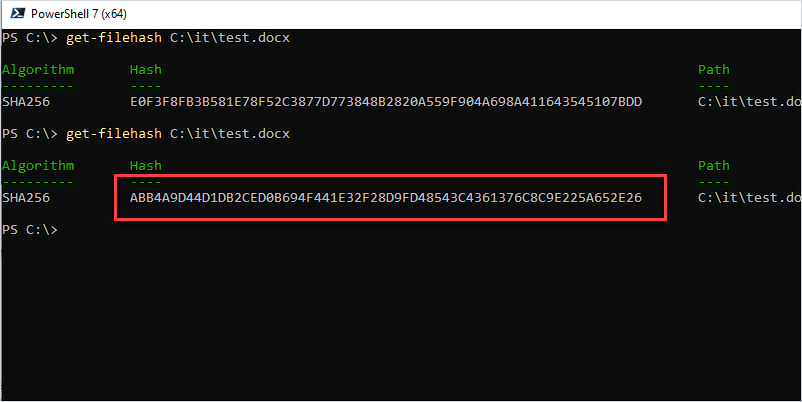
Checking Checksums Using GUI Tools for Everyday Users
If you prefer graphical interfaces over command-line tools:
- Using 7-Zip (Windows): Install 7-Zip, right-click the file -> select CRC SHA -> choose SHA-256.
- Using Hasher / GUI Checksum Tools: Free utilities such as OpenHashTab add a dedicated “Hashes” tab directly to the Windows File Explorer Properties window.
Guide to Verifying Digital Signatures (Authenticode & GPG/PGP)
Digital signatures provide the highest level of security for executable binaries (.exe, .msi, .dmg, .AppImage).
Verifying Windows Authenticode Digital Signatures via File Properties
On Windows, developers usually embed Authenticode digital certificates directly inside installer files.
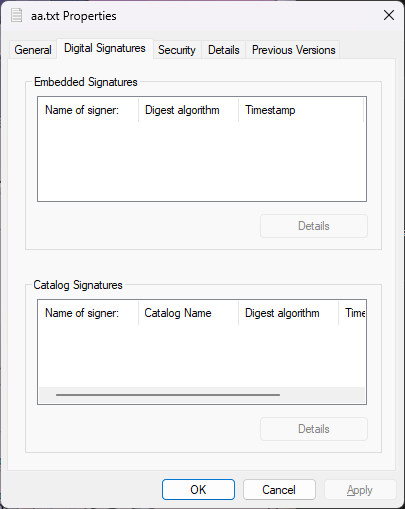
- Right-click the downloaded
.exeor.msifile -> select Properties. - Switch to the Digital Signatures tab.
- Select the publisher’s name in the list -> click Details.
- If the window states “This digital signature is OK”, the file is genuine and signed by the verified organization.
Verifying GPG/PGP Signatures on Linux and macOS
For open-source projects (such as Linux ISOs or encryption software), developers usually provide a separate signature file alongside the download (with .sig or .asc extensions).
Step 1: Import the developer’s Public Key:
gpg --recv-keys <Key_ID>Step 2: Verify the signature of the file:
gpg --verify file.iso.sig file.isoIf the output displays Good signature from "Developer Name", the file has never been tampered with and was issued directly by that developer.
Common Pitfalls & Security Rules for File Verification
Many users perform integrity checks but still fall victim to basic security oversights:
- Obtaining Checksums From a Compromised Download Server: If a hacker has taken control of the download server, they can replace both the
.isofile and the SHA-256 string displayed on the webpage. Always cross-reference the checksum or Public Key from independent sources, official documentation, or secure HTTPS connections. - Using Outdated Hash Algorithms (MD5, SHA-1): MD5 and SHA-1 have proven collision vulnerabilities (Collision Attacks) hackers can forge two different files that yield identical MD5 values. Always prioritize SHA-256 or SHA-512.
- Manually Comparing Only the First and Last 4 Characters: Some users only glance at the start and end of a hash string. Attackers can deliberately generate fake hashes matching those initial/ending characters. Use automated comparison commands or paste both strings into a comparison tool.
- Relying Solely on File Size or Timestamps: File size in megabytes and modification timestamps are trivial to manipulate. Only cryptographic hashes and digital signatures provide mathematical proof of integrity.
FAQ
If the Checksum value is off by even 1 character, can I still use the file?
Absolutely not. A single mismatched character means your file suffered data corruption during download or was modified by a third party. Delete the file immediately and re-download it from the official source.
Why should MD5 and SHA-1 be avoided for security verification?
MD5 and SHA-1 are cryptographically broken. Attackers can inject malicious code into an executable while preserving the original file’s MD5 or SHA-1 hash value (hash collision). SHA-256 is the current minimum standard for secure verification.
Why does my downloaded file trigger an antivirus alert even when the Checksum is correct?
This happens for two reasons: a false positive from your antivirus software, or the legitimate publisher’s developer account was compromised to distribute malware. A matching checksum confirms that your local file is identical to the file on the server, but it does not guarantee that the server copy itself is clean.
How can I ensure I am obtaining a genuine Public Key for GPG signature verification?
You should fetch Public Keys from reputable key servers (such as keyserver.ubuntu.com or pgp.mit.edu), verify them on official HTTPS project pages, or confirm the key fingerprint across independent community channels.